

Edit in a Minute: How to Remove an Object from a Photo
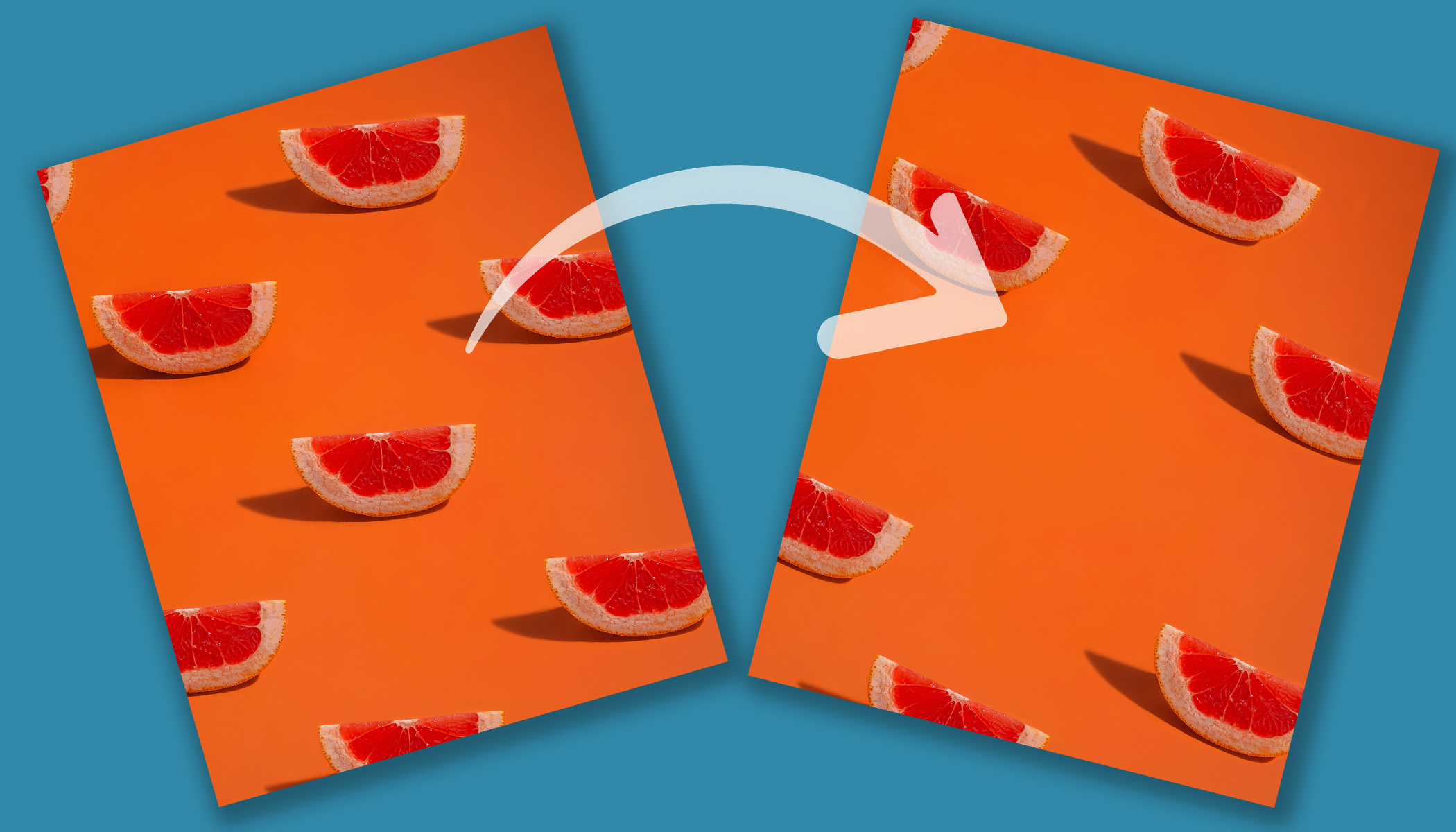
Unwanted objects in the frame, passersby, or distracting background details—sometimes even a small element can make an otherwise great photo look off. The good news is that in Zoner Studio, you can easily remove these elements in just a moment. Let’s take a step-by-step look at how to do it using retouching tools.
With just a few adjustments in the Develop module, the distracting object disappears from your photo. Most often, you’ll only need the Healing Brush or the Clone Stamp. Each of these tools is suited for slightly different types of retouching. In this guide, we’ll show you when to use each one and how to work with them.
Browse through the gallery with photos where each step is clearly described, or read more detailed information in the box below the gallery. If you don’t have Zoner Studio yet but want to try this edit, download it free for 7 days. Even complete beginners can handle this edit.


How to Remove an Object from a Photo in Zoner Studio
1. Start with the Healing Brush
The easiest way to remove smaller objects is the Healing Brush. You can find it in the Retouching Tools (J) section. It works by replacing the problem area with surrounding texture.
Simply brush over the distracting object and Zoner Studio takes care of the rest. The tool automatically selects a suitable source area. The result is usually fast and natural, especially for minor imperfections.
2. Adjust the Source Area
Automatic selection doesn’t always pick the perfect spot. If the result doesn’t look right, you can manually move the source area. Try to choose a place with a similar structure and lighting. A well-chosen source is key to making the retouch invisible.
3. Use the Clone Stamp for Precision
The Clone Stamp copies the selected area exactly, without automatic blending. Like the Healing Brush, you can find it in the Retouching Tools (J) section. It’s ideal for more complex areas, object edges, or regular patterns.
First, select the source area, then paint over the unwanted object. Work in smaller sections to keep the result natural.
4. Combine Tools as Needed
You’ll achieve the best results by combining both tools. Use the Healing Brush to quickly remove most of the object and the Clone Stamp to refine details.
For more advanced retouching, you can use the Editor module, which supports layers. However, for most common small edits, the Develop module is sufficient.
You can find more tips in the article How to Retouch Away Wires, Trash, and More in Your Photos.
What to Remember
Removing an object from a photo in Zoner Studio is fastest with the Healing Brush, which automatically replaces the distracting area with surrounding texture. For more precise edits, use the Clone Stamp, which copies the selected area without adjustments.
By combining both tools, you can achieve a natural result without visible edits. Even a distracting object can be removed in under a minute.


There are no comments yet.