How Autostack Can Save You Hours of Work
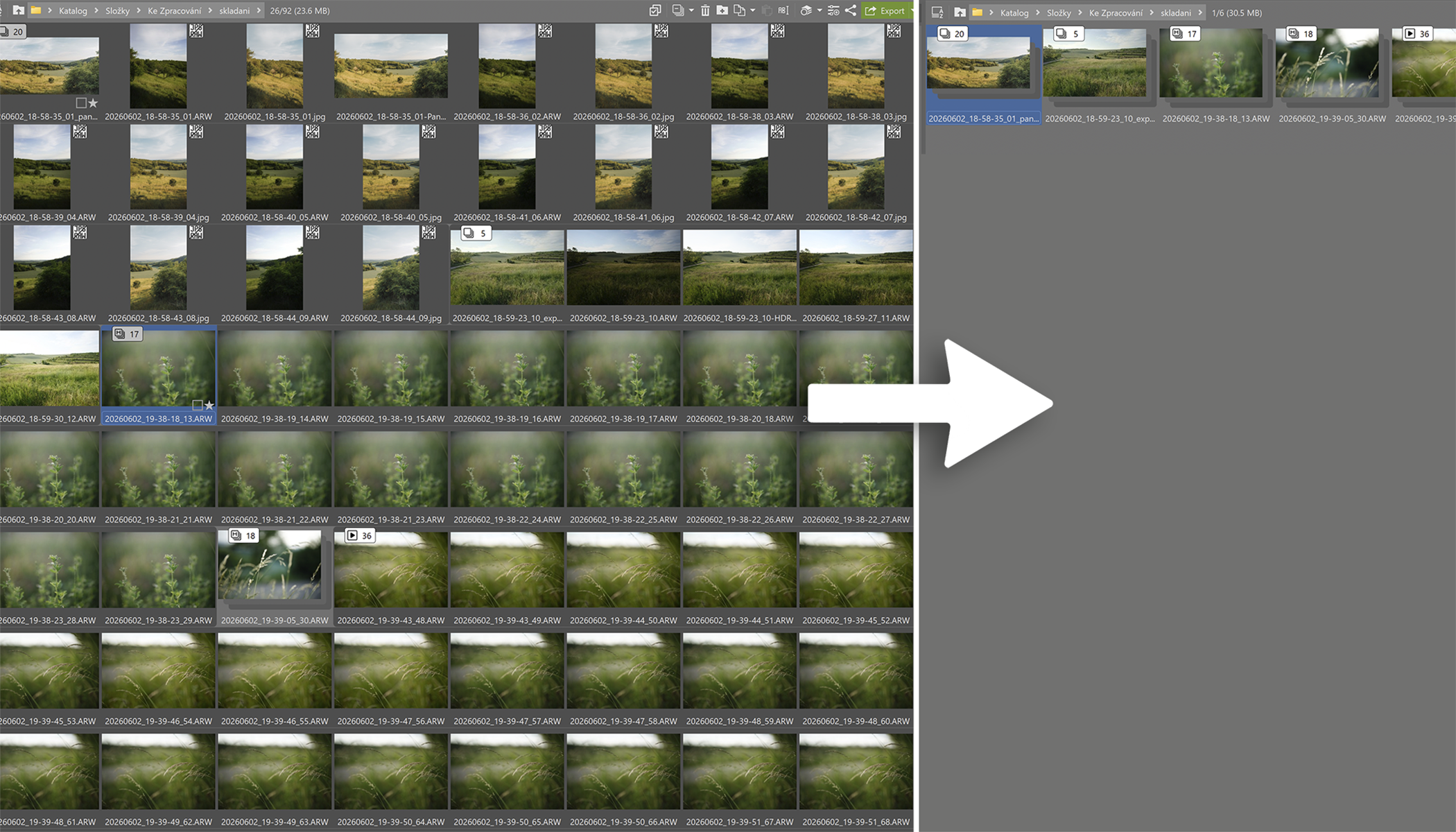
Anyone who shoots panoramas, uses exposure bracketing, focus stacking, time-lapse photography, or burst mode will appreciate Autostack. Zoner Studio recognizes similar photos, groups them together, and if needed, merges them into a single image.
Zoner Studio uses image similarities and metadata to identify what you’re photographing and automatically groups related photos. For example, if you return from a trip with 20 different panoramas, instead of sorting through hundreds of individual photos, you see 20 easy-to-browse groups, or stacks. Zoner Studio can also recognize exposure bracketing sequences and other techniques.
Where to find Autostack
You can find the Autostack icon in the top-right of the Browser. It’s available in both the Manager and Develop modules.
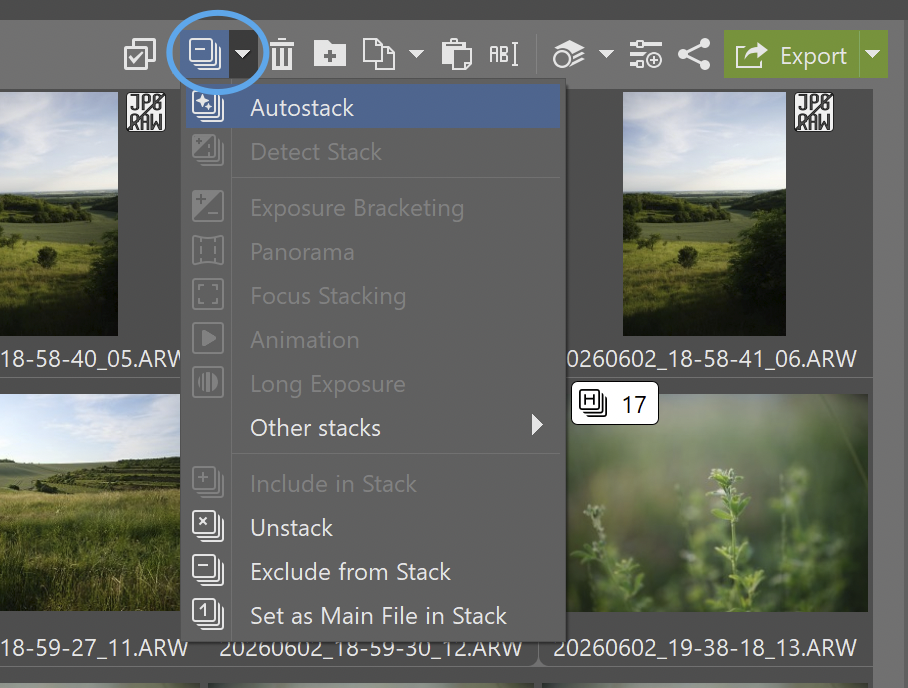
Merging photos automatically
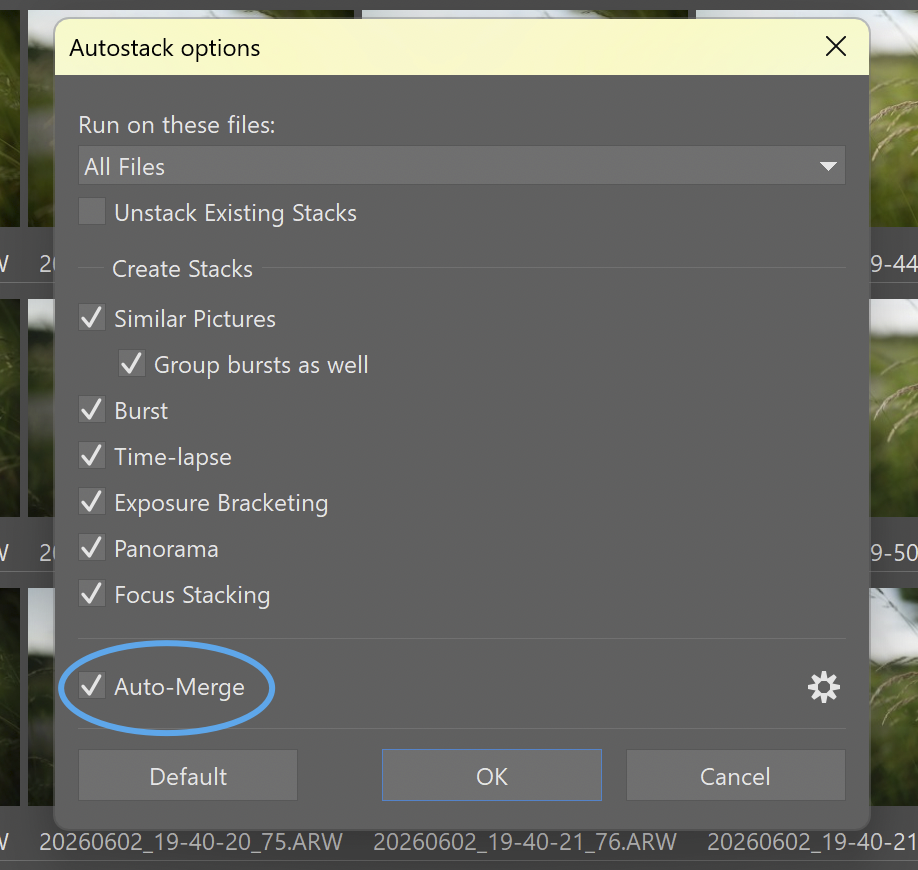
Autostack goes a step further than photo organization. Once Zoner Studio has identified panoramas, focus stacks, and exposure bracketing sequences, it can automatically merge them as well. After clicking the Autostack icon, a window opens where you can choose which criteria Zoner Studio should use when creating stacks. The key option is the last one—Auto-Merge.
The tedious work of searching and sorting is now done automatically. That leaves you more time for creative tasks like color correction, retouching, and other adjustments.

Less time organizing, more time shooting
Autostack saves you the hassle of finding which photos belong together. Panoramas, exposure bracketing sequences, focus stacks, and time-lapse photos are automatically organized and ready for further editing or even merging. Instead of sorting everything manually, you can focus on what really matters—taking photos and editing the results.
Try Autostack in Zoner Studio free for 7 days.