Exposure Bracketing: How to Create HDR Photos in Zoner Studio
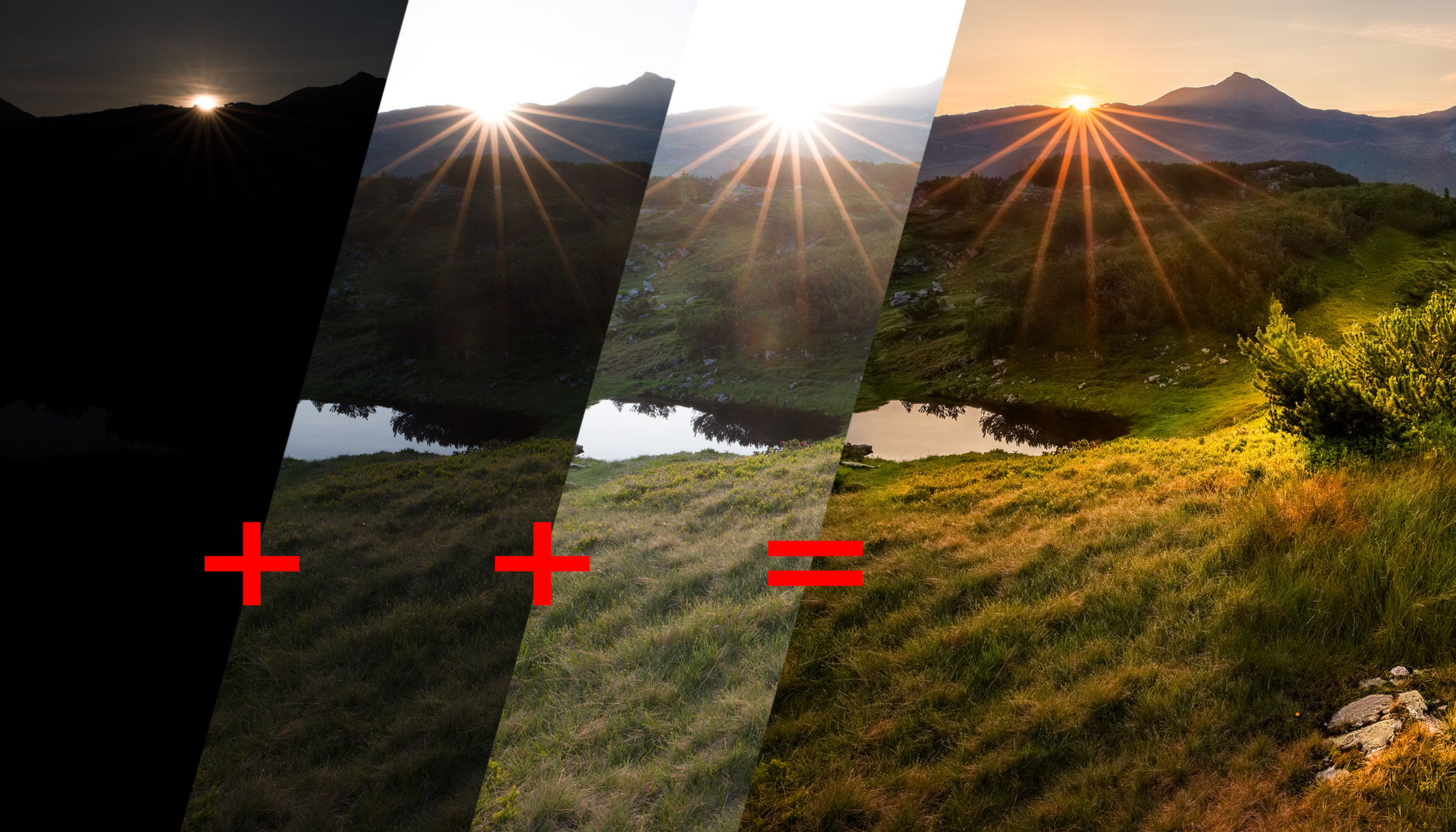
A wide range of highlights and shadows has long been one of the biggest challenges for landscape photographers. Especially at sunrise and sunset, the lighting conditions are often too complex for even advanced cameras to handle in a single frame. The solution is to take multiple shots at different exposure levels and combine them using Zoner Studio.
In this article, you’ll learn:
- How to use Exposure Bracketing in Zoner Studio, and how it differs from Tone Mapping and Extended Dynamic Range.
- When to enable or disable the Align Pictures and Deghosting options.
- Why 48-bit color depth is essential for your output file.
- How to fine-tune the resulting image in the Develop module.
The technique described in this article is commonly referred to as HDR (High Dynamic Range), a term that has been around for a long time. Today, HDR can refer to modern, high-performance monitors that can emit intense brightness approaching sunlight.
That’s why this article uses the term exposure bracketing, which refers to how you prepare the image data. In other words, how you capture a high-dynamic-range scene so it can be properly displayed, whether on a cutting-edge HDR monitor or in a much more limited print format.
Selecting your photos
Start in the Manager module of Zoner Studio and select the photos you want to use.
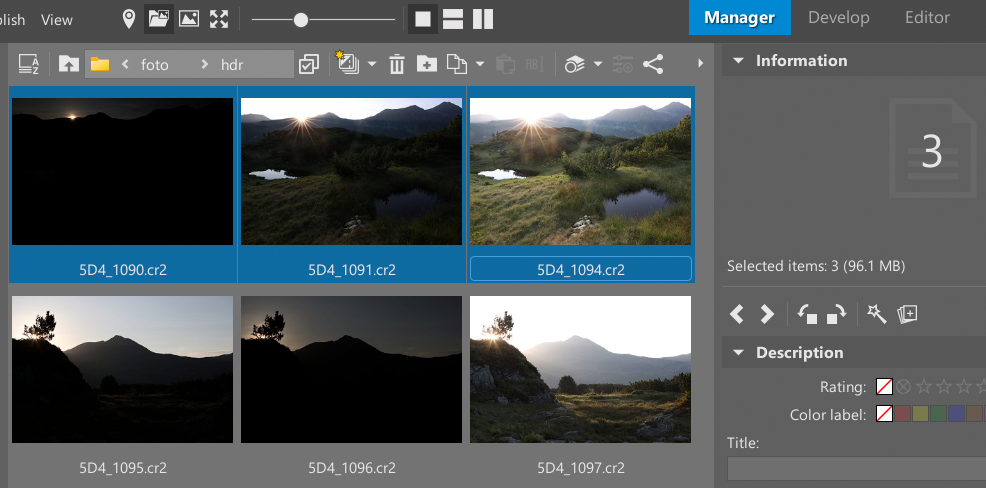
The number of photos depends on how you shoot the scene. While you can manually take all the photos and adjust each one’s exposure, this is unnecessarily tedious. Most cameras have an exposure bracketing feature which automatically takes a series of shots in rapid succession at varying exposures (dark, medium, bright). You can adjust the shift in exposures, but it’s generally best if the photos are separated by 1 to 2 EV (exposure values). In most cases, a series of 3 to 5 images is best.
When you select multiple photos in the Manager module, the right panel updates to show the Batch Operations section.
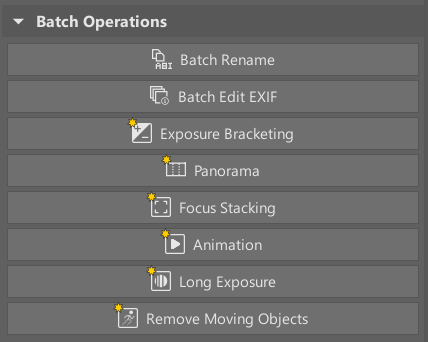
Look for the Exposure Bracketing button. Click it to start the bracketing process and open a dialog box with several options. Most importantly, you can choose between two methods.
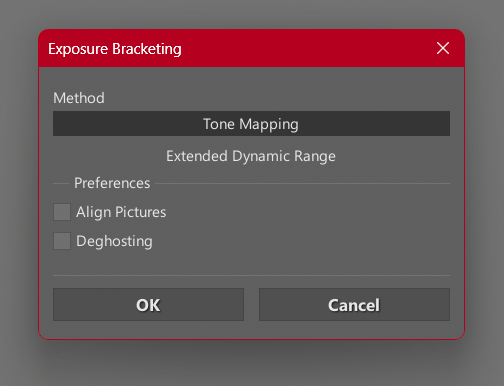
Method 1: Tone Mapping
The first method uses subtle transitions to bring the brightness of highlights and shadows closer together. As a result, the image loses its extreme dynamic range. You’ll want to boost contrast during post-processing to prevent the photo from looking flat. However, because of the low dynamic range, the image is very easy to edit and quickly gives you a polished look.
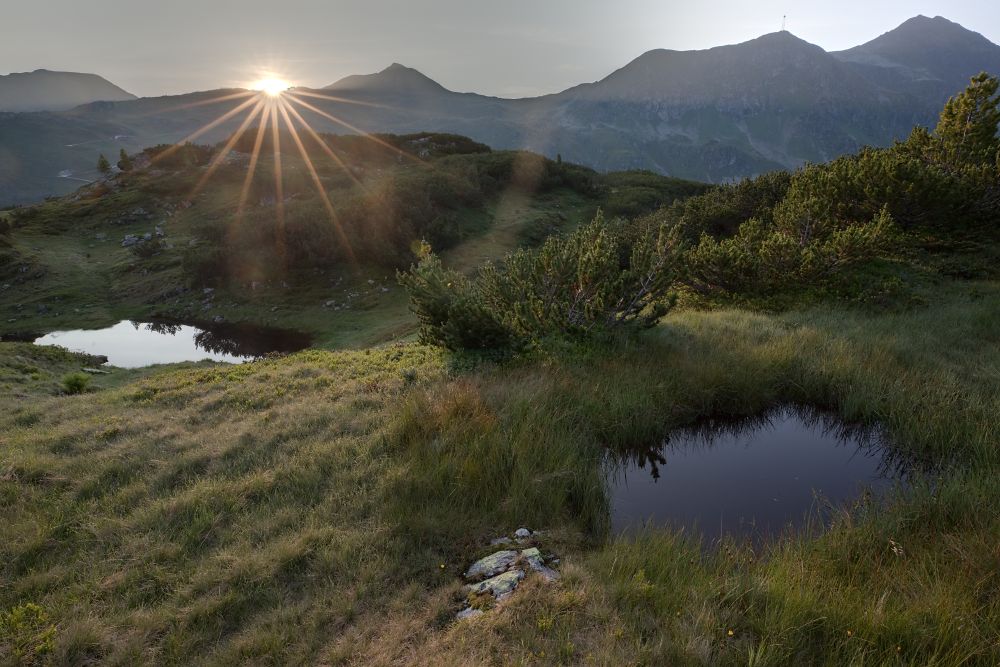
This method works well when you want a solid result as quickly as possible. While it doesn’t give you complete control over the process, you get a pre-processed base image that you can finalize with just a few adjustments.
The resulting image has a low dynamic range, so this method isn’t useful if your end goal is displaying on an HDR monitor.
Method 2: Extended Dynamic Range
The second option merges your exposures into a single image that resembles your middle exposures, but with much greater flexibility for editing. Unlike the original, this image contains data from all your exposures. You can easily darken areas that were overexposed or brighten shadows without introducing heavy noise.
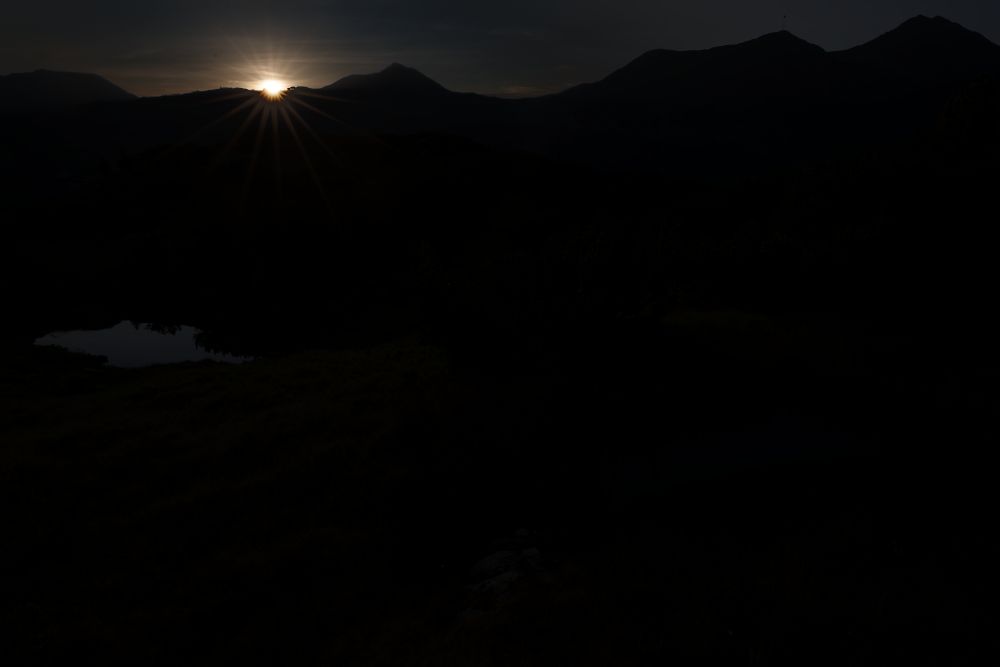
With this method, you get excellent raw image data to work with, but how you process it is entirely up to you. This gives you more editing options, though Zoner Studio leaves the tone balancing up to you. Fortunately, it isn’t difficult to bring your image to a state similar to Tone Mapping.
On the other hand, you can choose to edit the image specifically for HDR monitors and get a completely different result.
Additional processing parameters
There are two additional checkboxes in the Exposure Bracketing window: Align Pictures and Deghosting.
Align Pictures means that, before merging the photos, Zoner Studio identifies matching anchor points and correctly aligns the photos. This feature is essential if you shot your series handheld and the images don’t align pixel-for-pixel. However, if you shot your sequence using a tripod, it’s best to leave this box unchecked. It offers no benefit and could even cause the algorithm to mistakenly align points that don’t belong together.
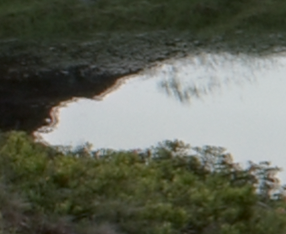
Deghosting eliminates issues caused by movement between frames—water ripples, swaying grass, people in the scene, etc. As with alignment, this feature is invaluable when needed, but if your scene is completely static, it’s safer to keep it disabled.
Output file format matters
Once you’ve named the new image, a final window appears. Pay close attention to this step, as it’s where you set your output file format.
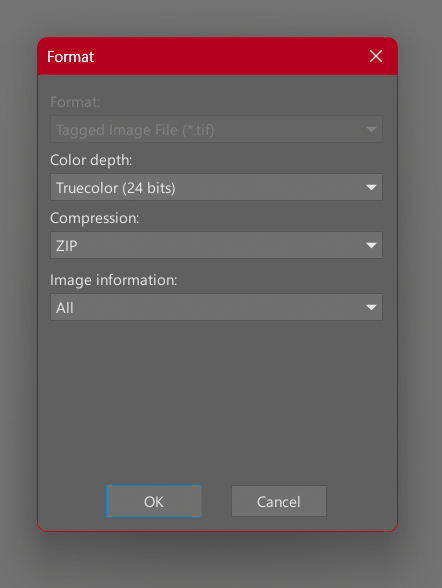
The Color Depth setting is critical. Standard Truecolor (24 bits) allocates 8 bits per color channel (Red, Green, Blue), yielding only 256 tonal steps. If you choose the Extended Dynamic Range method, the shadows in the new file may be so dark that they fall into a very narrow range (like 0 to 10). Even if you brighten them, you can encounter what’s known as posterization—wide, visible banding of the same color.
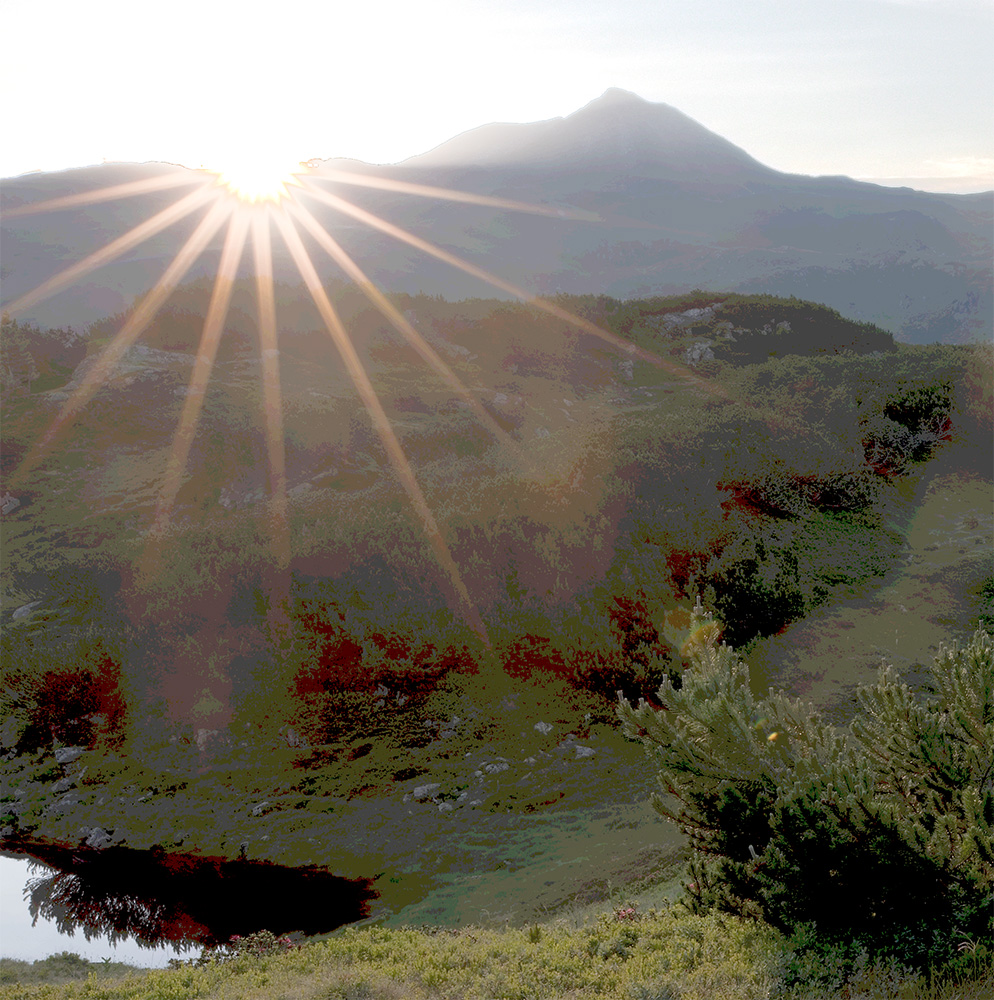
To prevent this, select Truecolor (48 bits) for Color Depth. This increases the number of tones per channel from 256 to 65,536, providing plenty of room for even heavy editing.
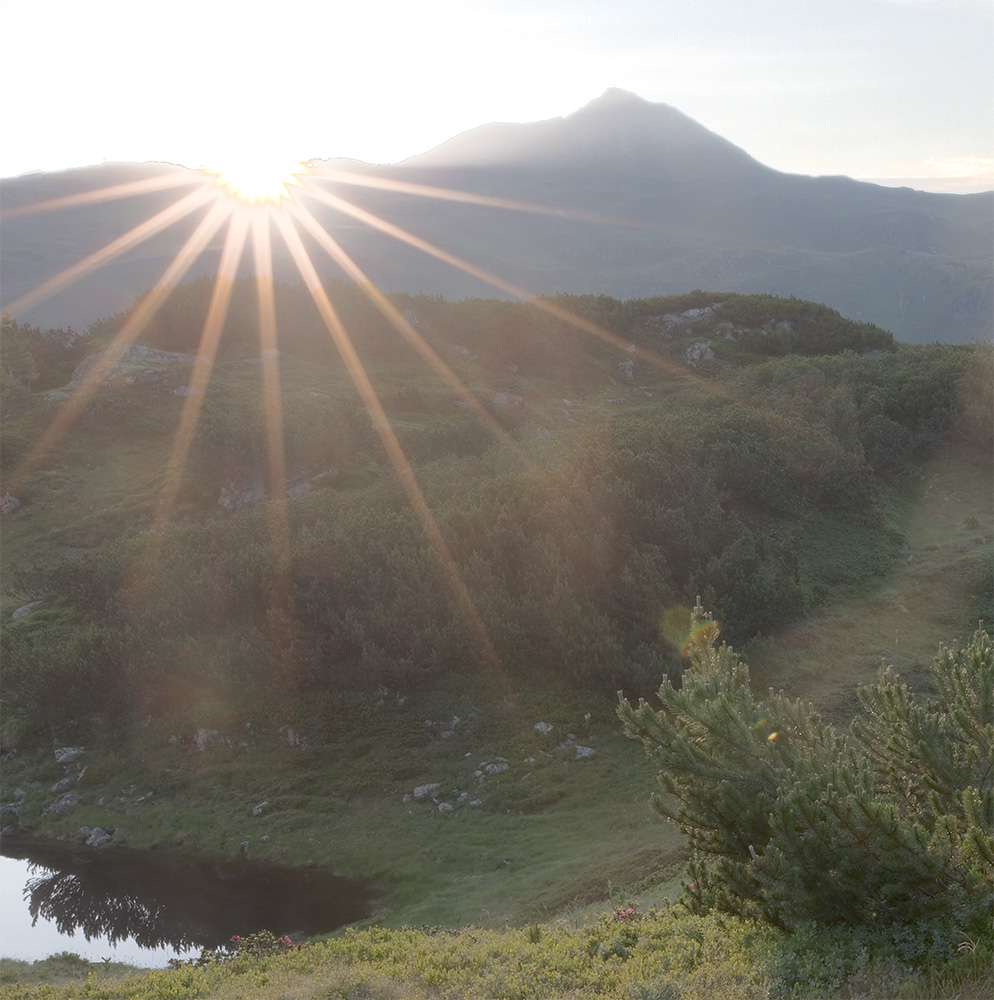
While 24-bit Truecolor may be sufficient for the Tone Mapping method, I always choose 48-bit because I don’t want to deal with issues that may arise after major changes to contrast and shadows.
The remaining settings are straightforward. ZIP compression is lossless, so you can safely use it every time. Leave Image information set to All.
Final adjustments in Develop
You still need to make the final adjustments in the Develop module. These depend on your preferences and your specific photo, of course.
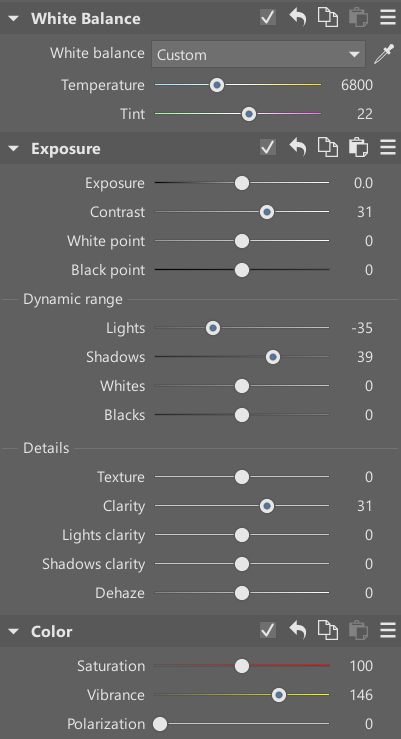
I tried creating a sample image with minimal changes using the first method, Tone Mapping. First, I increased Contrast, Clarity, and Vibrance. I also decreased Lights and increased Shadows, and increased White Balance for a nice effect. No other changes were made.
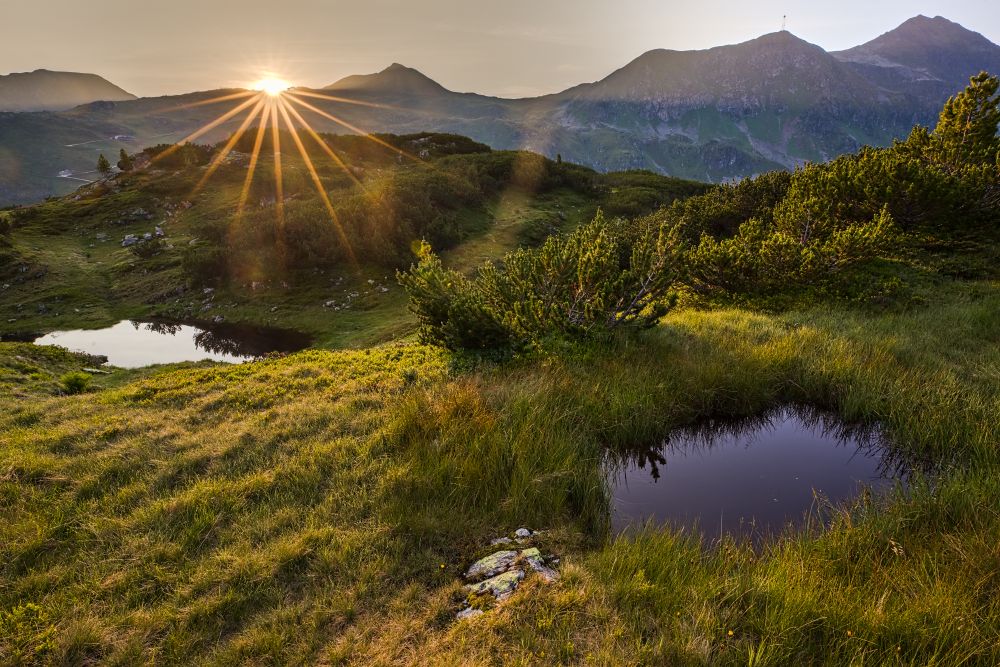
When using the second method, one option is to significantly increase Shadows and decrease Lights, adjusting Exposure as needed. This brings you very close to the result from the first method, and you can proceed as indicated above. But the advantage of the second method is that you don’t have to adjust Lights and Shadows as much. Instead, you can selectively darken the sky and brighten parts of the ground.
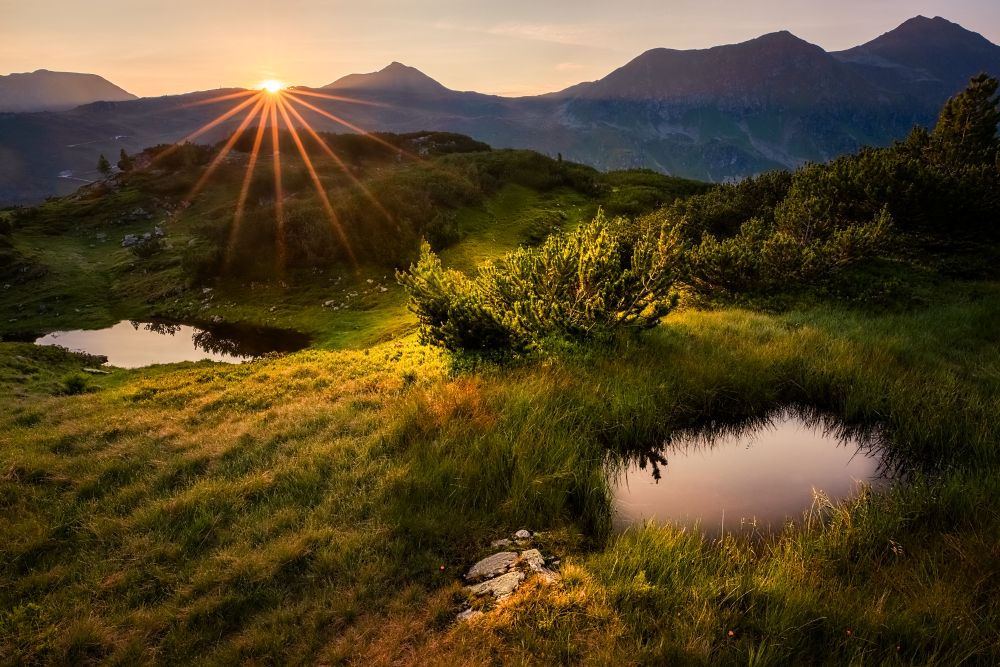
You can also use masks to further adjust how the scene looks. For example, here is an image using seven masks, which, among other things, draws the eye to the bush in the center and brightens the pond on the right.
Exposure Bracketing is a very useful feature
If you haven’t tried exposure bracketing, I recommend giving it a try as soon as possible. I use it very often, and the resulting photos are of significantly higher quality than the RAW files straight from the camera. Plus, Exposure Bracketing is easy to use in Zoner Studio. A bit of practice and you’ll be able to improve your photos without needing to buy a new camera or lens.
FAQs
What is exposure bracketing and how many images do I need?
Exposure bracketing is a camera function that takes several shots of the same scene at different exposures in rapid succession—typically dark, medium, and bright. Combining these shots creates a photo with a high dynamic range, commonly referred to as HDR. Usually, three to five shots, spaced 1 to 2 EV apart, are sufficient.
What is the difference between Tone Mapping and Extended Dynamic Range?
Tone Mapping lowers dynamic range, giving you a result you can quickly and easily edit. It’s less suitable for HDR displays. Extended Dynamic Range preserves image data from all images, giving you more editing options, but requires more manual adjustments.
When should I enable Align Pictures and Deghosting?
Alignment is necessary for a series of handheld photos. If you’re using a tripod, it’s best to disable it so the algorithm doesn’t accidentally align points that don’t belong together. Deghosting is useful when something is moving in the scene, such as water ripples, swaying grass, or people. Leave it disabled for static scenes.
What color depth should I choose when saving my resulting image?
48-bit Truecolor is the safer choice. 24 bits offers only 256 tones per channel, so brightening dark shadows results in posterization. With 48 bits, there are 65,536 tones, enough for significant adjustments. 24 bits may be enough for the Tone Mapping method.