

Search in Zoner Studio—Find Any Photo Instantly
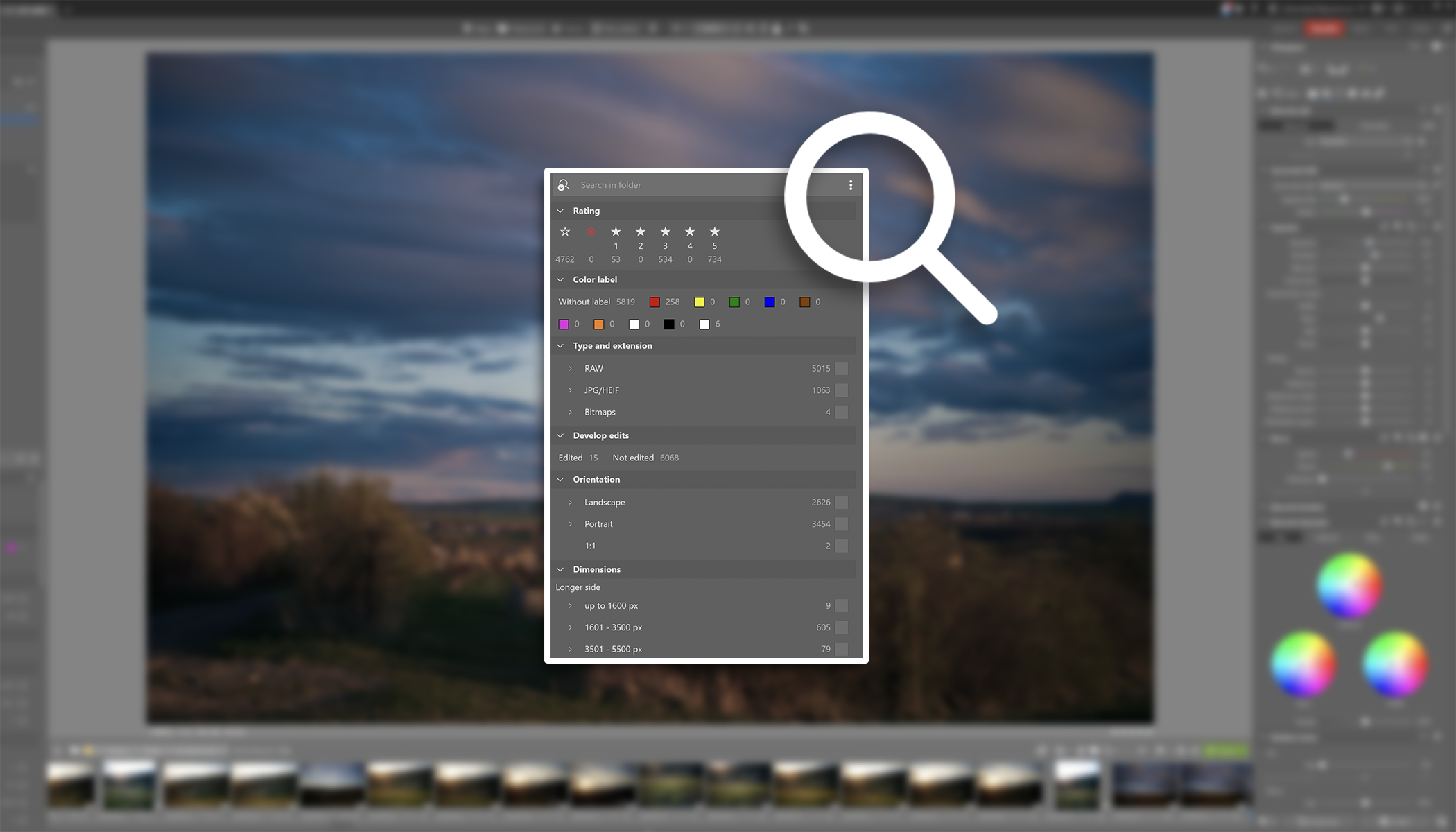
Can’t find the photo you’re looking for? Well, that’s a thing of the past. Zoner Studio’s advanced search lets you search using almost any parameter you can think of. You can also use the new search feature for filtering, statistics, and a variety of other tasks.
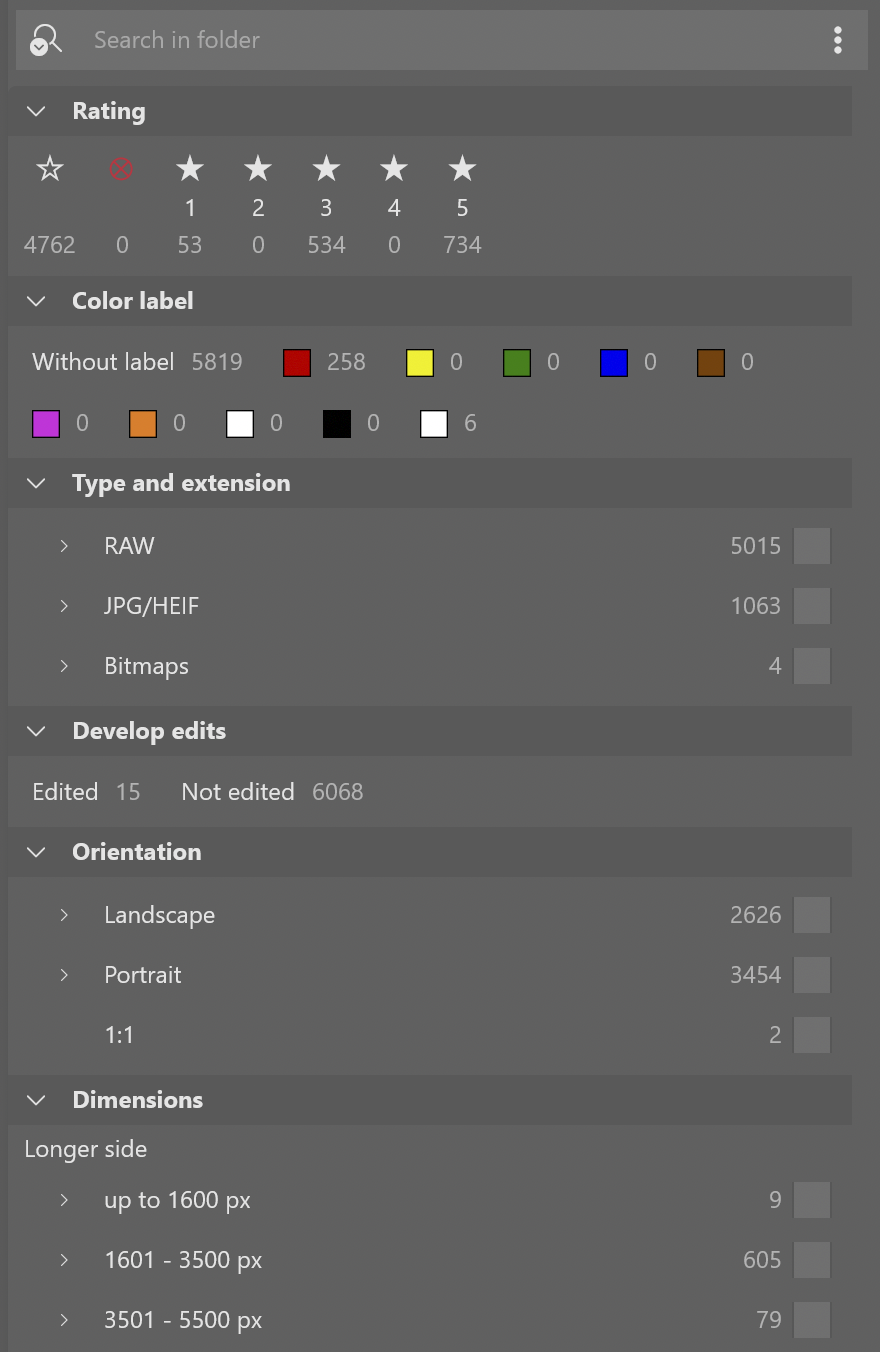
Search is located at the bottom of the left panel in Zoner Studio. The panel contains a wide range of metadata you can use to search for your photos—from rating and file types to details like aperture or focal length used. You can also see how many photos with a given property are in the folder for each parameter.
With or without the Catalog?
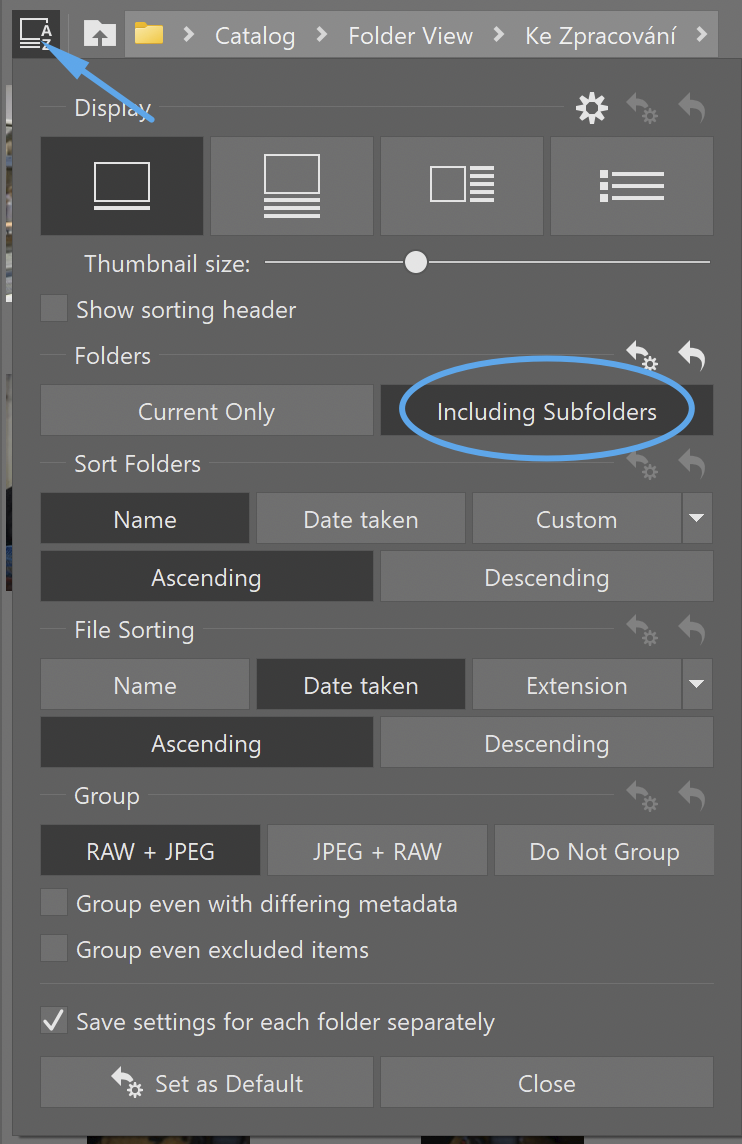
Search works fast and offers more options in the Catalog, and this is why we recommend using the Catalog for a more efficient workflow. You can also search subfolders.
But you can use the Search feature reliably even outside the Catalog.
Search your entire database
Search always works within the folder that is currently open. However, you might need to find specific photos among all the photos you’ve ever taken. In that case, open the main folder—the one containing all the subfolders with your photos—and start adding search criteria. To search subfolders, your photos must be included in the Catalog.
Search across all modules
Search isn’t just available in the Manager. You can find it throughout the entire Zoner Studio interface. Even when you’re editing in Develop or the Editor, or putting together a photo book in the Print module.

Combine parameters to suit your needs
You can combine virtually any parameter. For example, are you looking for photos with portrait orientation shot at f/1.4 and f/1.8, in RAW format, with the keyword family or taken at your home address? No problem.
Great for overviews and statistics
If you’re curious which lenses you use most often and which ones you hardly ever use, view the number of photos for these parameters for an instant overview.
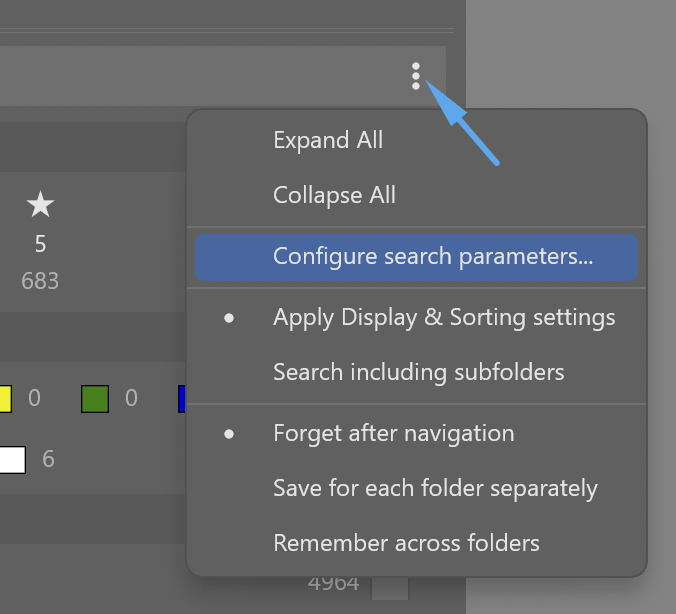
Because EXIF metadata contains much more information than you see by default, you can also display additional parameters. After clicking the three dots, select Configure search parameters. Then check any parameter that is important to you.
Find exactly what you need
When you’re looking for the best photos for a photo book, photos taken with a specific lens, or perhaps all the RAW files from a recent family vacation, advanced Search saves you a lot of time.
Thanks to a combination of metadata, ratings, and keywords, even a large photo archive stays organized and easy to navigate. Try out the new search options in Zoner Studio and see for yourself that finding the right photo takes just a few clicks.


There are no comments yet.